Ecowitt and the brands that sell it
Ecowitt HP2551, HP2553 and HP2560 custom server setup
The HP2551, HP2553 and HP2560 consoles (and Froggit's HP1000SE PRO and Aercus's WeatherMaster) can send their readings to a server of your own with the Weather Underground upload, beside their uploads to Ecowitt.net and Weather Underground. The Customized setting is on the console's own Weather Server screen. These steps, from Ecowitt's manuals, point yours at Dank Weather.
Steps
Connect the console to Wi-Fi
Press the gear key Setup (gear) for Setup, move to Wi-Fi Scan with the arrows, pick your network (2.4 GHz only) and enter its password on the on-screen keyboard. On the HP2560's touchscreen, touch instead of pressing.
Already on Wi-Fi? Skip to the next step.
Open Customized setup
In Setup, move down to Weather Server, in the right-hand column, and press + (magnifier). Press ↓ to highlight Setup on the Customized line, at the bottom, then + (magnifier) to open it.
Froggit's HP1000SE PRO and Aercus's WeatherMaster are this console too.
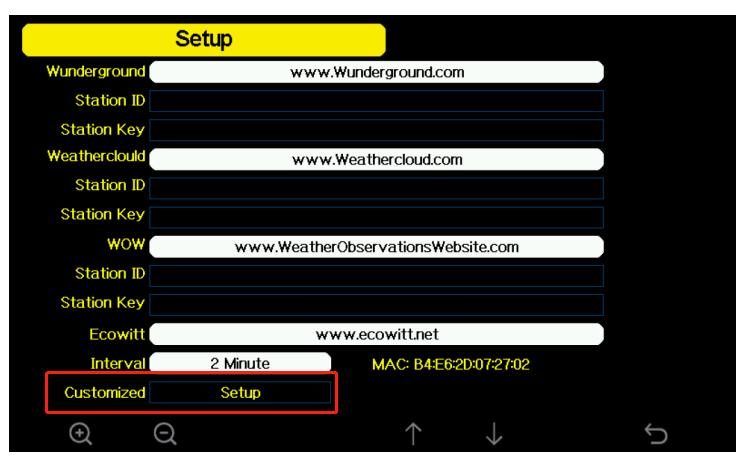
Weather Server. Customized's Setup is the last line. Enter Dank Weather's settings
Move between fields with ↑ and ↓. On State and Protocol Type, + (magnifier) and − (magnifier) change the choice. On a field you type into, + (magnifier) opens the keyboard: move to each character with the arrows and press ↵ to type it, then choose OK. ↩ goes back.
There's no Path field: the console sends to Weather Underground's own path, which Dank Weather takes too.
- State
- Enable
- Protocol Type
- Same As WundergroundNot Ecowitt: Dank Weather reads the Wunderground and Ambient Weather protocols.
- IP/Hostname
- api.dankweather.com
- Port
- 80
- Interval
- 16 SecondNewer firmware goes down to 8 seconds.
- Station ID
- Any nameYour own, such as smith-backyard, up to 40 characters. Your station is listed under it until you rename it.
- Station Key
- A password you make upDank Weather knows your station by its ID and key together, and never stores the key. Keep a note of both: they add the station to your account if the setup key doesn't.
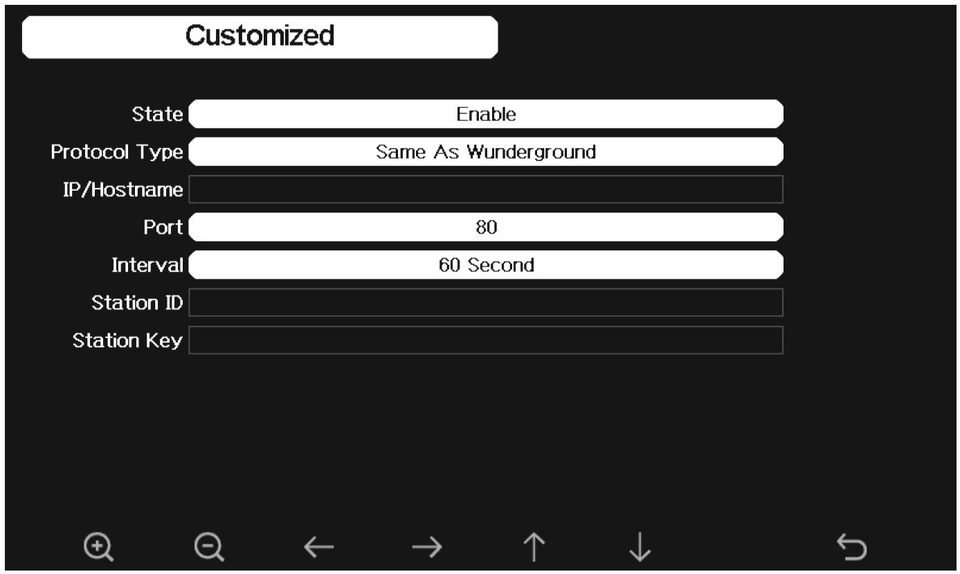
Same As Wunderground picked, before the rest is filled in. Add it to your account
The console has no Path field to carry your setup key. Once it has sent its first reading (about a minute after you save), enter the station ID and key you gave it.
Sign in (or make an account) and this step has a form to add it by its station ID and key.
- Use port 80. Stations send to a custom server over plain HTTP, not HTTPS.
- Changing the station ID or key later starts a new station on Dank Weather.
- Screens from Ecowitt's HP2550 and HP2553 manuals.
Questions
- Why the Wunderground protocol and not Ecowitt's?
- Dank Weather reads the Weather Underground and Ambient Weather uploads, not Ecowitt's own.
- Does it still upload to Ecowitt.net and Weather Underground?
- Yes. Customized is an upload of its own, beside the others.
- What are the station ID and station key?
- A name and a password you make up. Dank Weather knows your station by the two together and never stores the key, so changing either one later starts a new station.
- Why port 80 and not HTTPS?
- The consoles send to a custom server over plain HTTP only, on port 80.
Why send it to Dank Weather
- Every reading is kept and shows up live on your station's page.
- History charts of temperature, wind, rain, pressure and air quality.
- A forecast at your station, and in the lower 48, the next two hours of rain from live radar.
- Your station in Home Assistant, with the Dank Weather integration.