Ecowitt and the brands that sell it
Ecowitt GW1100, GW1200, GW2000 and GW3000 custom server setup
The GW1100, GW1200, GW2000 and GW3000 gateways can send their readings to a server of your own with the Weather Underground upload, beside their uploads to Ecowitt.net and Weather Underground. The Customized setting is on the gateway's web page, or in the Ecowitt app. These steps, from Ecowitt's manuals, point yours at Dank Weather.
Your setup key
The setup key goes in the path, and adds the station to your Dank Weather account with its first reading. Make an account or sign in and this page fills yours in.
Steps
Open the gateway's web page
Already on your network? Type the gateway's address into a browser on the same network. Your router's list of connected devices shows it.
Otherwise, hold its button (on the GW2000 and GW3000, Reset) for 5 seconds, until a light flashes fast. Not 10: that resets a GW3000. For 5 minutes it broadcasts its own network, named for the model, like GW1100A-WIFI1A2B. Join it and go to
http://192.168.4.1. The password is blank (the GW3000's username is admin).Not on your Wi-Fi yet? Open Local Network, enter your network and its password and click Apply.
Fill in Customized
Open Weather Services. At the bottom, in Customized, choose Enable and Wunderground, fill in the fields as below and save.
Or use the Ecowitt app: open the station, tap ⋯ at the top right, then Others, DIY Upload Servers and Customized.
- Customized
- Enable
- Protocol Type Same As
- WundergroundNot Ecowitt: Dank Weather reads the Wunderground and Ambient Weather protocols.
- Server IP / Hostname
- api.dankweather.com
- Path
- /weatherstation/updateweatherstation.php?Leave it as it is: Dank Weather takes Weather Underground's own path. With a setup key, the path adds the station to your account.
- Station ID
- Any nameYour own, such as smith-backyard, up to 40 characters. Your station is listed under it until you rename it.
- Station Key
- A password you make upDank Weather knows your station by its ID and key together, and never stores the key. Keep a note of both: they add the station to your account if the setup key doesn't.
- Port
- 80
- Upload Interval
- 16Seconds. 16 is the shortest most stations allow.
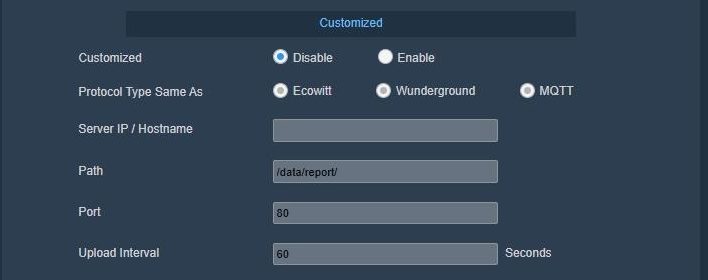
Customized on a GW2000's page, before it's filled in. 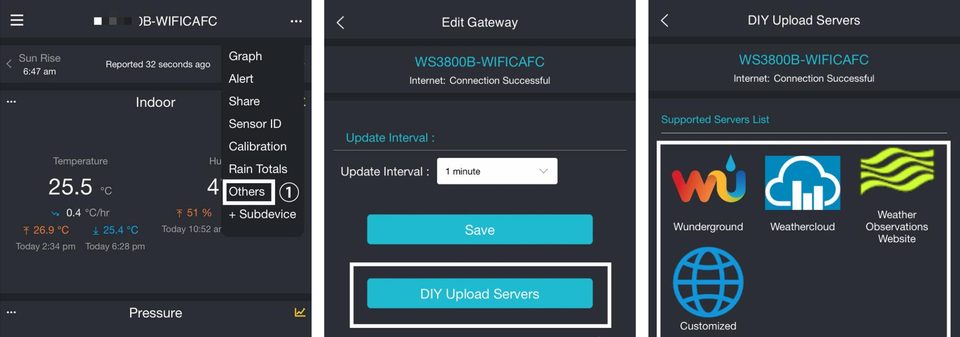
In the Ecowitt app: Others, DIY Upload Servers, Customized. Add it to your account
Without a setup key the station sends its readings but isn't added to your account: make a setup key above and use the new path, or add it here. Once it has sent its first reading (about a minute after you save), enter the station ID and key you gave it.
Sign in (or make an account) and this step has a form to add it by its station ID and key.
- Enter the path exactly as shown, ending in the
?. - Use port 80. Stations send to a custom server over plain HTTP, not HTTPS.
- Changing the station ID or key later starts a new station on Dank Weather.
- Screens from Ecowitt's GW2000 and GW1100 manuals.
Questions
- Why the Wunderground protocol and not Ecowitt's?
- Dank Weather reads the Weather Underground and Ambient Weather uploads, not Ecowitt's own.
- Does it still upload to Ecowitt.net and Weather Underground?
- Yes. Customized is an upload of its own, beside the others.
- What are the station ID and station key?
- A name and a password you make up. Dank Weather knows your station by the two together and never stores the key, so changing either one later starts a new station.
- Why port 80 and not HTTPS?
- The consoles send to a custom server over plain HTTP only, on port 80.
Why send it to Dank Weather
- Every reading is kept and shows up live on your station's page.
- History charts of temperature, wind, rain, pressure and air quality.
- A forecast at your station, and in the lower 48, the next two hours of rain from live radar.
- Your station in Home Assistant, with the Dank Weather integration.